Children's Schedule and Get-Ready Board | DAILY BOARD HOME
Children's Schedule and Get-Ready Board
THE DAILYBOARD HOME
A board for your home tablet where children can see today's schedule and check for themselves what to do next.
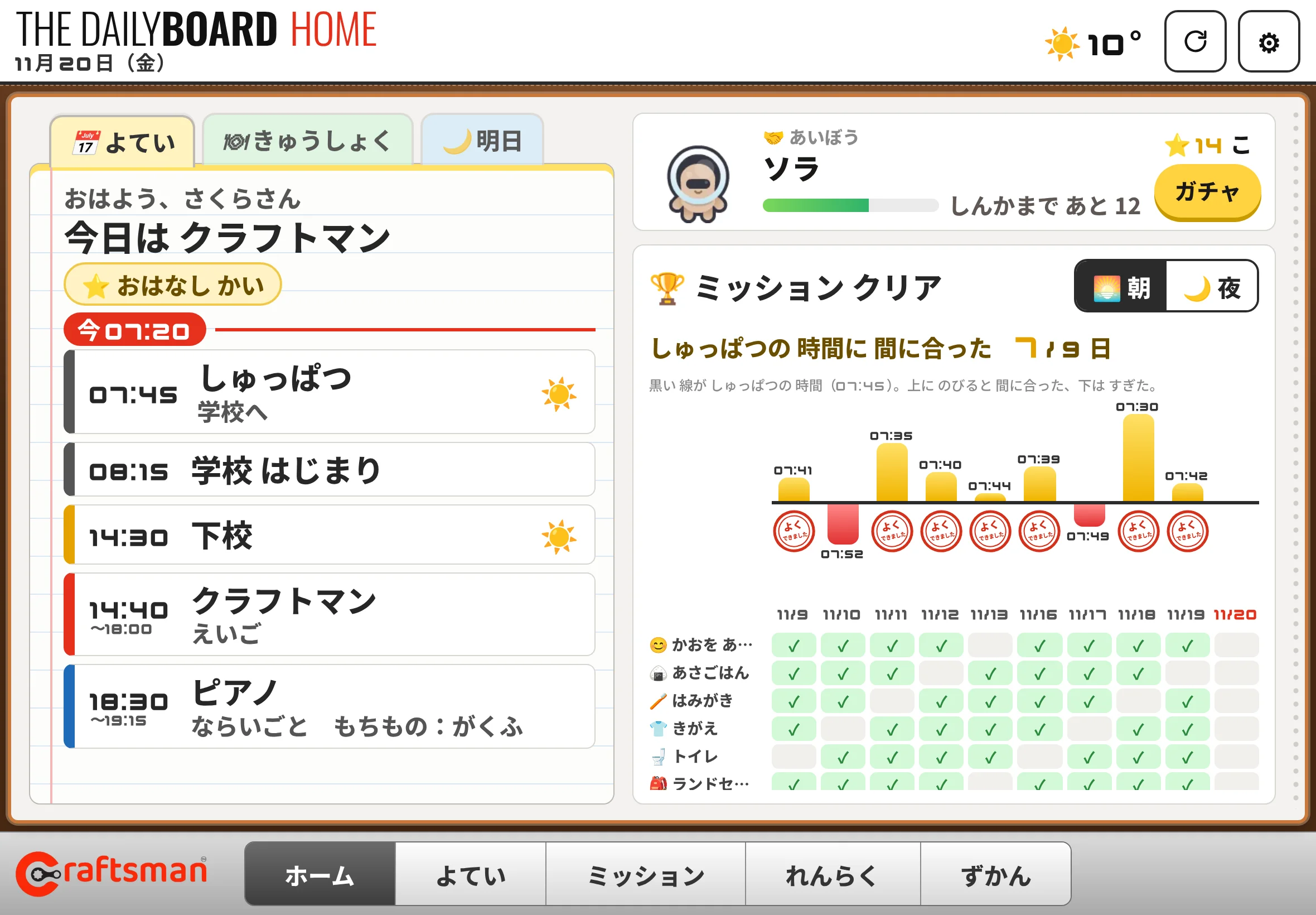
The screen is a sample (names and schedules are fictional).
How it supports your child through the day
From getting ready in the morning to homework after coming home, it aims to reduce how often you have to say "Hurry up" or "Have you done your homework?"
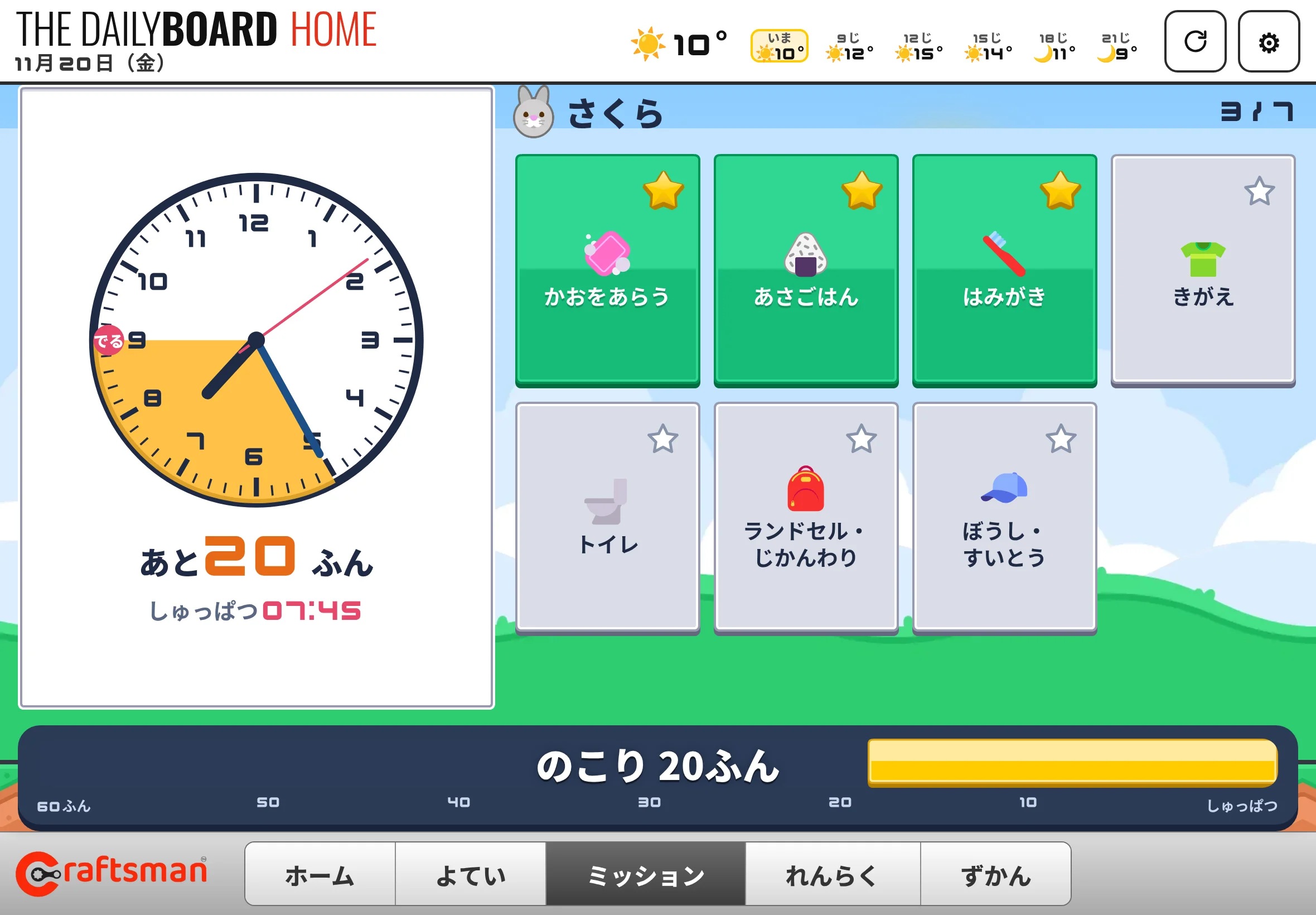
Get ready one step at a time, watching how many minutes are left before leaving
"Missions" let your child tap through get-ready items such as "wash face" and "change clothes" on their own. A clock and a time-remaining bar show at a glance how long is left before leaving. If they finish in time, a reward mini-game awaits.
From the time you leave home to lessons, in time order
The time to leave home, the time school ends, days at Craftsman, lessons and more are lined up in time order. A red line marks the current time, so your child can see what comes next. Parents enter lessons and other plans. The "Tomorrow" tab also shows the next day's schedule.
School end times and school events appear for the month once you load the school newsletter (event schedule) PDF. For months that have not been loaded, "usual time" is shown.
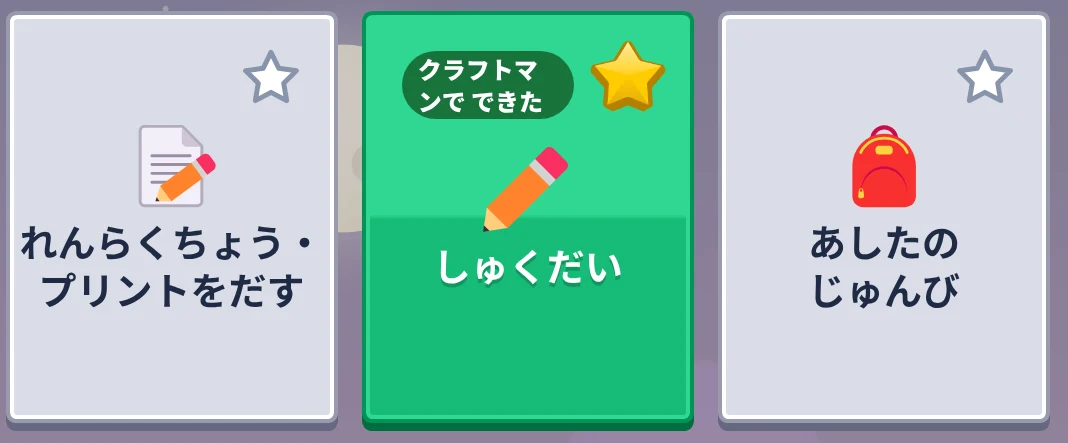
Homework finished at Craftsman is automatically marked "done" on the home board
On days when homework was finished at Craftsman, the staff record is automatically reflected in "homework" on the home board, which shows "done at Craftsman." If there is homework left to do at home (such as reading aloud), it appears as an item for that day.
- Homework at Craftsman
- →
- Staff record it
- →
- "Done" on the home board
Load the newsletters and they appear on the board
Just send the school newsletter (event schedule) PDF, and school end times and school events line up on your home board. For elementary schools near Craftsman, school lunch menus link automatically with the Yokohama City menu and appear on the board.
Elementary schools whose lunch menus appear automatically: Kitayamata, Higashiyamata, Nakagawa, Nakagawa-nishi, Ushikubo, Minamiyamata, Yamata, Eda, Katsuta and Hiyoshidai. For other schools, send the school lunch newsletter PDF and it will appear (this may take a few days). The screen is a sample (schedules are fictional).
Loading school newsletters and entering plans such as lessons are done in My Page.
Watch the Videos
Introduction video
The screen is a sample (names and schedules are fictional).
In real use (morning mission)
Filmed at a family that attends Craftsman.
And More
Messages ("Renraku")
Your child can contact their parents with buttons for set phrases or short sentences. When you read a message, it is marked as read ("kidoku").
Picture book ("Zukan")
Characters met in missions and at Craftsman gather in the picture book, making it fun to keep going every day.
Characters matched to grade level
Only the kanji your child has learned by their grade are used, and everything else is shown in hiragana. You can also switch to English.
How to Start
On your home tablet, you can open it in any of the following ways. Once it opens, log in with the same email address and password as My Page.
From this page
Press "Open the board" below and it opens right away.
From My Page
In "Settings" in My Page, press "Open on this screen" under "Daily Board Home."
Scan the QR code
Scan the QR code shown in the same section of My Page with your tablet's camera.
Add it to your home screen to open it like an app
On an iPad, choose "Add to Home Screen" from the Share button in Safari. From then on you can open it from the icon.
The screens are samples.
Price
¥0No extra charge
Available to families using Craftsman (those with a My Page). Please use your own family's tablet.
Try It Now
Back to the price simulator (Japanese page) / See other free services